Judul : How to make a picture vintage in photoshop tutorial
link : How to make a picture vintage in photoshop tutorial
How to make a picture vintage in photoshop tutorial
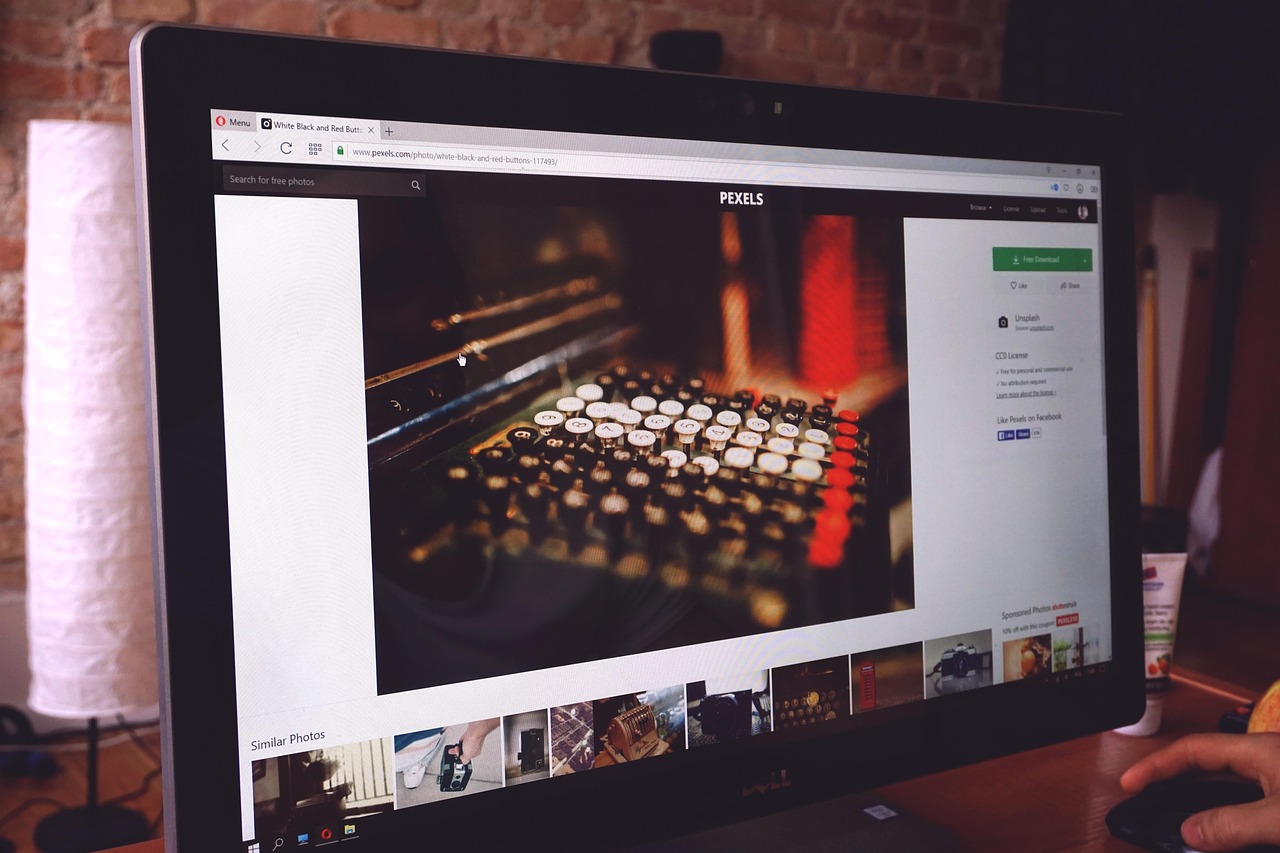
Creating a vintage look in Photoshop is a timeless skill for photographers and digital artists. Whether you want to achieve the soft, faded aesthetic of 1970s film or the high-contrast grit of early 20th-century photography, Photoshop provides the tools to transform modern, crisp images into nostalgic masterpieces. This guide will walk you through the most effective non-destructive techniques to give your photos that classic, aged appearance.
Understanding the Vintage Aesthetic
Before jumping into the software, it is helpful to understand what makes a photo look "vintage." Generally, vintage photography is defined by a few key characteristics:
- Faded Blacks: Shadows are rarely pure black; they often appear dark gray or washed out.
- Color Shifts: Older film stocks often lean toward warm yellows, oranges, or cool, desaturated blues.
- Grain: Analog film has a natural texture that digital sensors lack.
- Softness: Vintage lenses were rarely as sharp as modern glass, leading to a dreamier, less clinical look.
Step-by-Step: Creating the Vintage Effect
1. Adjusting the Tone Curve
The most important step for a vintage feel is adjusting the tone curve to "fade" your blacks. Open your image in Photoshop and go to the Adjustments panel to create a Curves adjustment layer. Click on the bottom-left point of the line and drag it upward. You will immediately see your shadows lose their deep black intensity, creating a flat, matte look common in retro prints.
2. Color Grading with Selective Color
To get that authentic color cast, use the Selective Color adjustment layer. This allows you to target specific color channels. For a warm, aged look, select the 'Yellows' or 'Reds' channel and increase the magenta or cyan levels. If you want a cooler, more moody vintage vibe, adjust the 'Blues' and 'Cyans' in the shadows.
3. Adding Realistic Film Grain
Digital images are often too clean. To add texture, create a new layer and fill it with 50% gray. Change the blending mode of this layer to Overlay. Go to Filter > Noise > Add Noise. Set the amount to roughly 3-5% and ensure Gaussian and Monochromatic are selected. This adds a subtle layer of grain that brings the image to life.
Comparison of Vintage Techniques
| Technique | Purpose | Effect |
|---|---|---|
| Curves Adjustment | Fading Blacks | Creates a matte, washed-out look. |
| Selective Color | Color Grading | Adds warmth or coolness to the atmosphere. |
| Add Noise Filter | Texture | Simulates the look of analog film grain. |
Refining the Look with Lens Blur
Modern cameras are incredibly sharp. To emulate vintage glass, add a very slight Gaussian Blur (Filter > Blur > Gaussian Blur). Keep the radius extremely low—between 0.5 and 1.0 pixels—to soften the edges without losing detail. This mimics the slight optical imperfections of cameras from the past.
FAQ: Common Questions About Vintage Editing
Can I use actions to make photos vintage?
Yes, Photoshop Actions are a great way to save time. However, learning the manual process allows you to customize the intensity of the effect to match the lighting of your specific photo.
What is the best way to make a photo look like old Polaroid film?
To achieve a Polaroid look, focus on high contrast, slightly blown-out highlights, and a strong yellow or magenta tint in the midtones. You may also want to crop your image into a square aspect ratio.
Should I save my work as a preset?
Absolutely. Once you have created a look you love, you can save your adjustment layers as a preset or use them in an Action to apply the same vintage aesthetic to your entire photo gallery quickly.
Conclusion
Mastering the vintage aesthetic in Photoshop is all about subtlety. By combining faded shadows, specific color grading, and a touch of film grain, you can transport your modern digital photographs back in time. Remember to experiment with the opacity of your adjustment layers; often, the best vintage edits are the ones that look natural rather than heavily processed. Use these steps as a foundation, and don't be afraid to experiment with your own unique color palettes to find the perfect retro style.


