Judul : How to edit a blurry picture on iphone How to
link : How to edit a blurry picture on iphone How to
How to edit a blurry picture on iphone How to
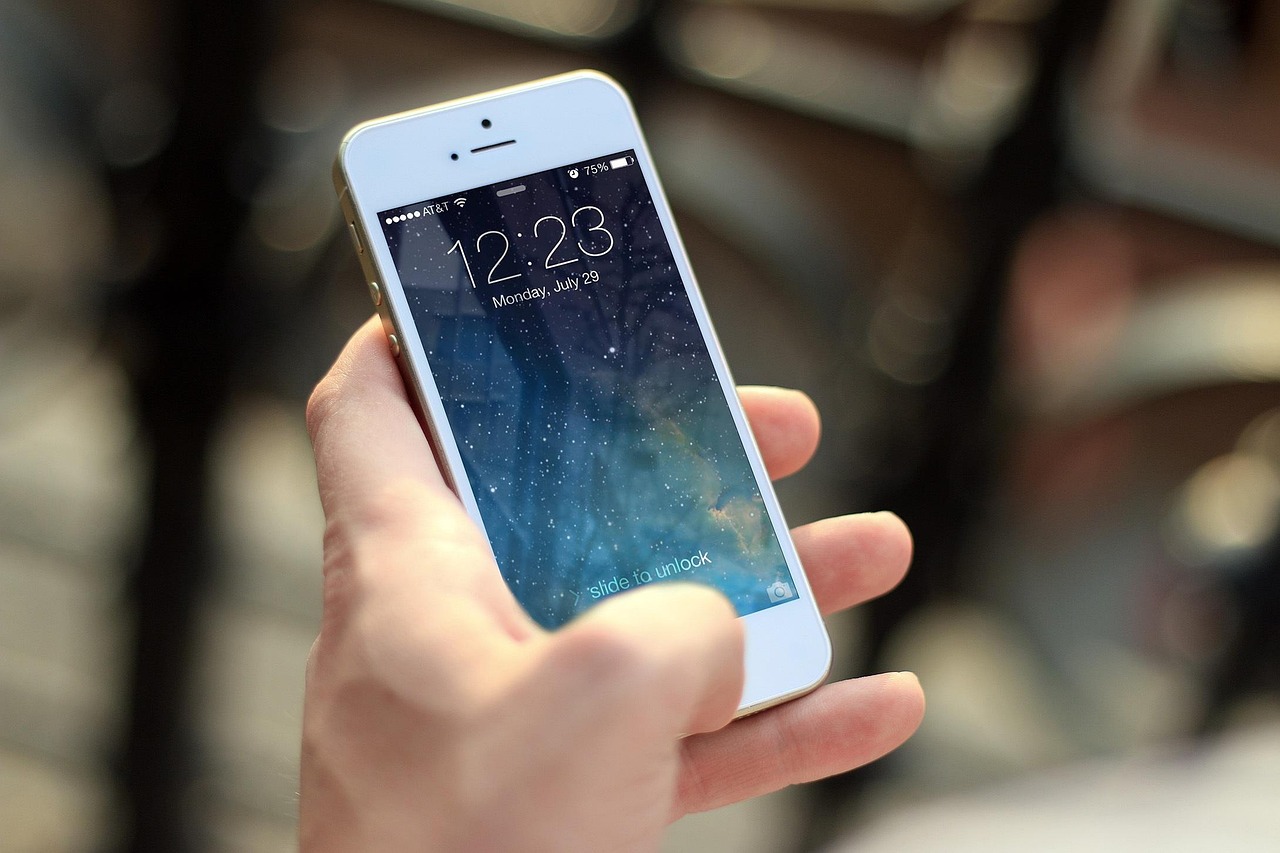
We have all been there: you capture the perfect moment, only to realize later that the photo is slightly out of focus or blurry. While a severely out-of-focus shot is difficult to salvage, many iPhone users can rescue "soft" or motion-blurred images using built-in tools and third-party applications. This guide will walk you through the best methods to sharpen your images and improve clarity.
Why Do iPhone Photos Become Blurry?
Before jumping into the editing process, it helps to understand why your photos might be blurry. Common culprits include:
- Camera Shake: Moving your hand while pressing the shutter button.
- Focus Issues: The camera locked onto the background instead of the subject.
- Low Light: In dark environments, the iPhone uses a slower shutter speed, making motion blur more likely.
- Dirty Lens: A smudged camera lens is the most common cause of "hazy" or soft photos.
Immediate Fixes Using the Built-in Photos App
You do not always need complex software to make a photo look better. The native Photos app on your iPhone has powerful adjustments that can simulate sharpness and improve detail.
1. Use the Definition and Sharpness Tools
Open your photo in the Photos app and tap the Edit button in the top right corner. Navigate through the adjustment icons until you find "Definition" and "Sharpness."
- Definition: Increasing this value adds contrast to the edges of objects, which helps the eye perceive the image as being in better focus.
- Sharpness: This slider enhances the fine details. Be careful not to slide this too far, as it can introduce digital noise or a "crunchy" look to your photo.
2. Adjust Contrast and Highlights
Sometimes, a photo looks blurry simply because it lacks contrast. By slightly increasing the contrast and lowering the highlights, you can make the edges of your subject pop, which often masks a slight lack of focus.
Best Third-Party Apps to Sharpen Blurry Photos
If the native tools are not enough, AI-powered applications have revolutionized image restoration. These apps use machine learning to "guess" the missing details and reconstruct edges.
Recommended Apps
- Remini: Known for its exceptional ability to fix blurry faces and restore old, low-resolution photos.
- Adobe Lightroom Mobile: Offers professional-grade masking and clarity tools that allow you to sharpen specific parts of an image without affecting the rest.
- Snapseed: A free app by Google that features a "Details" tool, which provides excellent control over structure and sharpening.
How to Prevent Blurry Photos in the Future
The best way to edit a blurry photo is to avoid taking one in the first place. Follow these simple tips to ensure crisp shots:
- Clean Your Lens: Before taking a picture, give your lens a quick wipe with a microfiber cloth. Natural oils from your fingers are the number one cause of blurry iPhone photography.
- Tap to Focus: Don't rely solely on the autofocus. Tap on your subject on the screen to ensure the camera locks onto the correct area.
- Use Burst Mode: If you are photographing moving subjects, hold the shutter button to take a burst of photos. You are much more likely to find one sharp frame in a sequence.
- Use a Tripod or Stable Surface: If you are shooting in low light, minimize camera shake by resting your phone against a wall or using a small tripod.
Frequently Asked Questions
Can you completely fix a photo that is totally out of focus?
Unfortunately, no. If a photo is severely out of focus, there is no data to "recover." Software can only enhance existing edges and textures; it cannot invent information that was never captured by the sensor.
Does sharpening a photo lower its quality?
Over-sharpening can introduce digital noise and artifacts, which can degrade the overall quality of the image. Always apply adjustments in moderation to keep the photo looking natural.
Is it better to use AI apps or manual editing?
It depends on the photo. AI apps are better for fixing faces and restoring resolution, while manual editing in apps like Lightroom is better for artistic control and subtle adjustments.
Conclusion
While an iPhone cannot perform miracles on a completely blurry shot, you have several powerful tools at your disposal to save your memories. By utilizing the adjustment tools in the Photos app, experimenting with AI-driven restoration apps, and maintaining a clean camera lens, you can significantly improve the clarity of your photography. Start with small, incremental adjustments, and you will find that even "soft" photos can often be turned into keepers.


